InvoisLaju › Guides › Create a quotation online for a Malaysian customer
Guide
Create a quotation online for a Malaysian customer
A useful quotation tells the customer what you will provide, what it costs and what happens next. Use this walkthrough to turn a price discussed on WhatsApp into a document you can review and send.
A quotation generator helps lay out and total the document. You still need to decide the service, quantities, delivery arrangements and terms with your customer. Prepare those details before filling in the form.
Prepare
Example of useful wording
Service description
Product photography for 12 items, two edited views per item
Included work
One studio session and one consolidated round of colour corrections
Excluded work
Models, location rental and additional retouching quoted separately
Timing
Delivery date to be agreed after the products arrive
Validity
Please confirm by the date stated in the quotation notes
These are writing examples, not default commercial terms. Adjust them to the job you actually offer.
Six steps from a blank quotation to PDF
Open the quotation editor. Use the quotation button below and check that the document type reads Quotation. In an empty workspace, it opens a new quotation. If you already have documents, your current work stays open: choose Quotation in the menu, then New quote when you want another document.
Select your business and customer. Use your own business name and contact details, then check who should receive the quotation. Reuse saved profiles when available.
Set the currency and language. Choose MYR for a ringgit quote, or the agreed currency. Check both the document labels and the currency on the preview.
Add the work as line items. Enter quantities and unit prices. Separate different services so the customer can see what a change in scope would affect.
Write the notes. Include validity, exclusions, payment terms and delivery arrangements. Only apply tax when it is appropriate to your business and transaction.
Review and export. Check names, item totals, final total and notes. Download the PDF, then attach it to the customer's email or WhatsApp conversation.
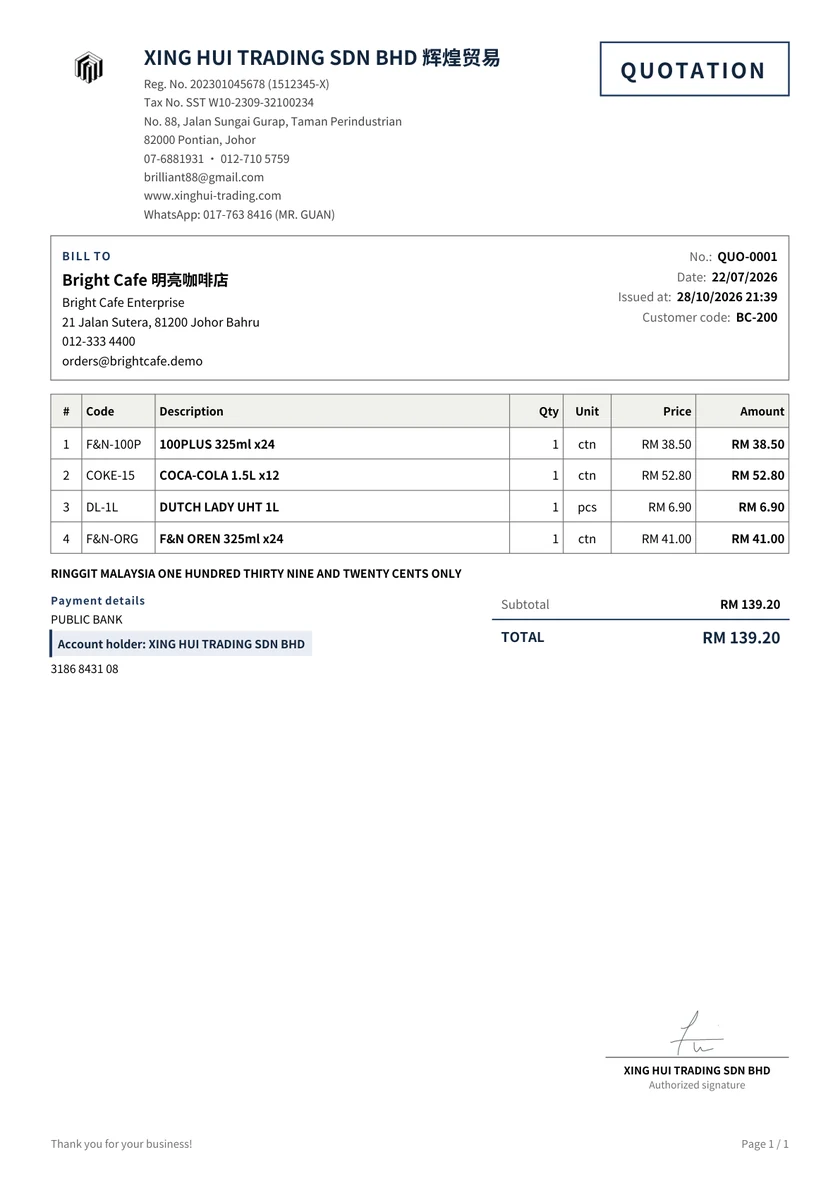
Download a completed quotation example
An original XING HUI TRADING document exported from the existing workspace, with its logo and signature. Use it as a layout reference and enter your own details.
Does the quotation cover the same scope as your conversation?
Are delivery, optional extras and exclusions explicit?
Is there a clear validity date or period in the notes?
Are the currency and final amount easy to identify?
Have you kept a copy of the version the customer will receive?
After the customer accepts
Keep their acceptance, then use the quotation-to-invoice action and review the new invoice's dates, number and terms. Sending a quotation does not itself record a payment. For the rest of the process, see the quotation, invoice and receipt workflow.
Free quotation generator: what is included?
The free plan has no time limit. It includes three footer-free exports each month; later exports carry an InvoisLaju footer. Premium templates, signatures and payment QR have separate trial allowances. Review the plan details before choosing an optional paid feature. The Classic template, your logo and the available colours let you start with a simple layout. A downloaded PDF is not a MyInvois submission.
Make your own quotation
Enter the actual scope and prices, check the preview, and export a PDF you can send to the customer.