From quotation to invoice to receipt: a practical workflow
One customer job can need three different documents. This guide follows the work from agreed price to payment, so you can choose the right document and keep the references clear.
Use a quotation to propose the work and price, an invoice to request the agreed payment, and a receipt to acknowledge money you have received. InvoisLaju lets you prepare all three, reuse business and customer details, and export PDF or PNG files.
Stage
Document
What to check
Customer asks for a price
Quotation
Scope, quantities, exclusions, validity and payment terms
Customer accepts and you request payment
Invoice
Agreed items, invoice date, due date and payment instructions
Payment is confirmed
Receipt
Actual amount received, payment date and the invoice or job reference
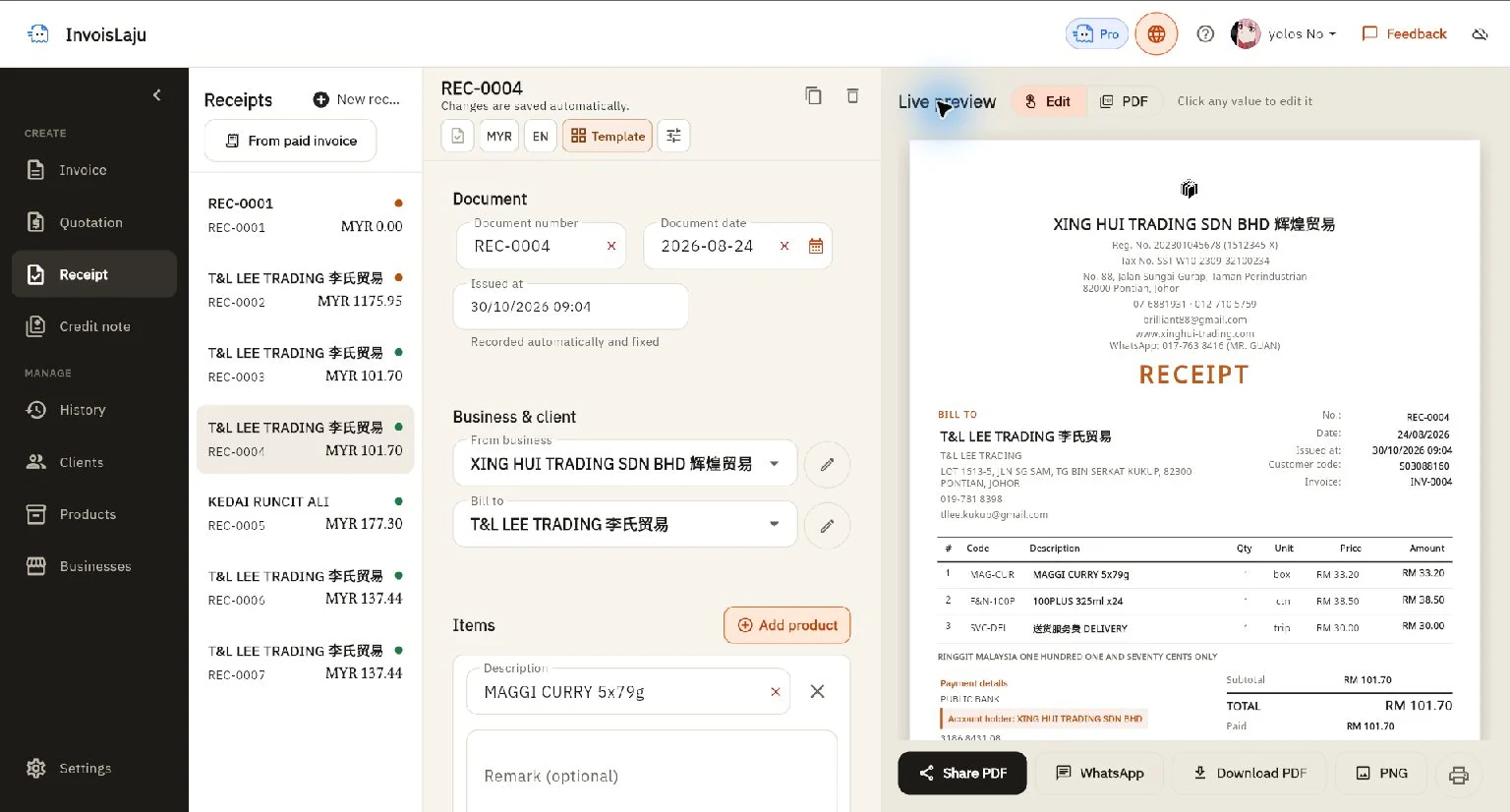
See the document editor
The owner's signed-in Web editor displaying an existing XING HUI TRADING receipt, shown as a product example.
The document types sit in the left menu. Check the selected business, currency and document language, then review the output beside the form before exporting.
A small service job, from quote to receipt
Prepare the quotation. Choose the correct business and customer, enter the service items and currency, and put the agreed scope and validity in the notes. Check the preview before sending.
Keep the customer's acceptance. Save the agreed version and the email or message confirming it. Revise the scope with the customer before billing for extra work.
Convert the quotation to an invoice. InvoisLaju carries the document details into a new invoice. Review its number, dates, terms and any changed items before exporting it.
Record the payment you actually received. A partial payment leaves an outstanding balance. Do not mark a bank transfer as received solely because the customer sent a screenshot.
Create the receipt when eligible. InvoisLaju can create a linked receipt from an issued invoice once it is fully paid. This is a separate action; recording a payment does not automatically send a receipt.
For a deposit before the invoice is fully paid, create a standalone receipt for the amount received and write the original invoice or job reference in its notes. Check that receipt and the invoice's payment record agree. The linked-receipt feature is not a per-instalment receipt generator.
See the documents before you start
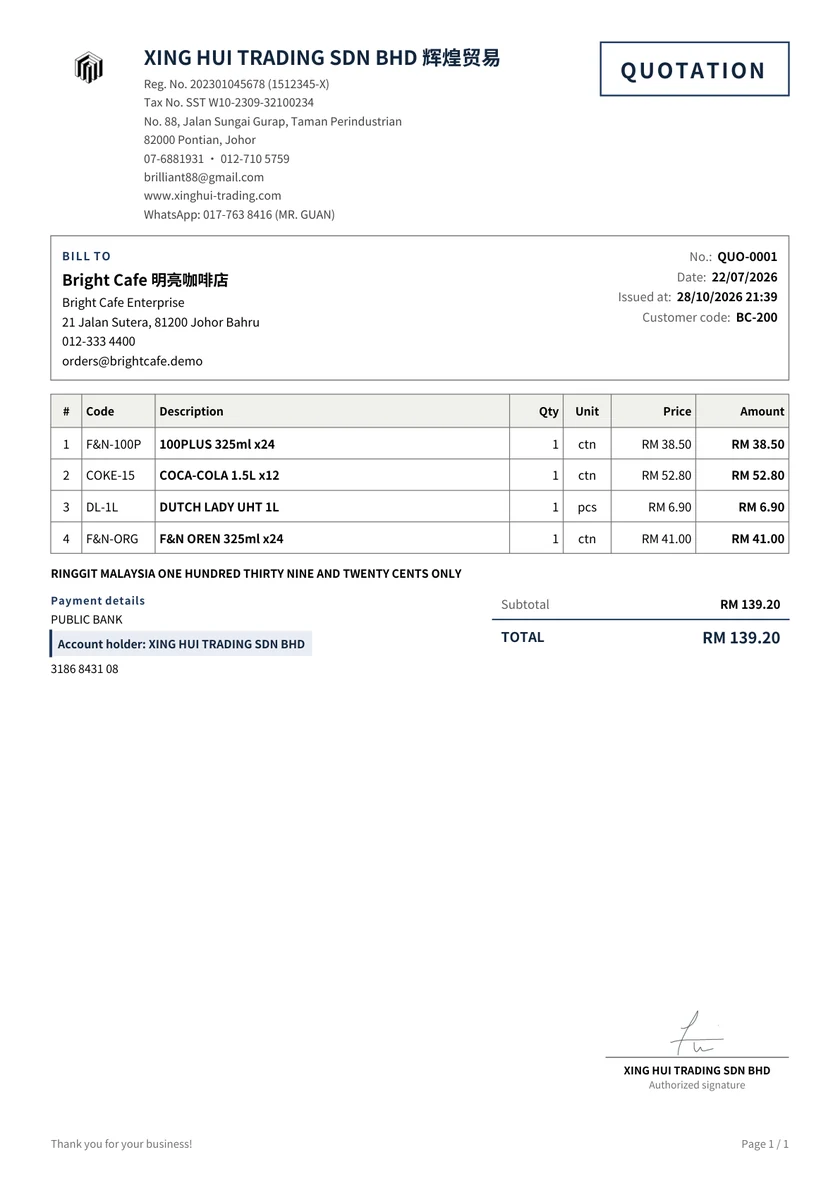
These original PDFs were exported from the owner's existing XING HUI TRADING workspace, including its logo and signatures. The quotation and invoice are MYR139.20 examples; the MYR101.70 receipt is a separate transaction referencing INV-0004. They are layout references, not editable Word/Excel files.
An original XING HUI TRADING document exported from the existing workspace, with its logo and signature. Use it as a layout reference and enter your own details.
Business profiles, customers and products for document preparation
Output
Invoice, quotation, receipt and linked credit-note documents with PDF/PNG output
Payment records
Record received payments and review the remaining invoice balance
Web and Android
Separate local workspaces; optional authorized Drive backup and restore, not live synchronization
LHDN e-Invoice
These document exports do not submit an e-Invoice to MyInvois or obtain LHDN validation
Choose a full accounting or integrated e-Invoice system if your task requires ledger posting, tax filing, bank reconciliation or MyInvois submission. For preparing and sharing everyday sales documents, start with one sample job and check the output against your needs.
Can I start without paying?
The free plan has no time limit. It includes three footer-free exports each month; later exports carry an InvoisLaju footer. Premium templates, signatures and payment QR have separate trial allowances. Review the plan details before choosing an optional paid feature. You can try ordinary editing without an account. Google sign-in is required for Web history, and Drive access requires separate authorization.
Start with the customer's quotation
Create the first document in your browser, check the PDF, and continue to the invoice when the customer accepts.