InvoisLaju › Guides › Keep the right business and currency on every invoice
Guide
Keep the right business and currency on every invoice
If you issue documents for more than one business, or invoice customers in different currencies, the details need a deliberate check. A familiar customer name is not enough to tell you which business and currency belong on the PDF.
Business profile and document currency are separate choices
InvoisLaju lets you save multiple business profiles and select the one used by a document. The document also has its own currency. A business profile holds reusable business details; it is not a separate accounting company ledger, team workspace or access-control boundary.
Choice
Check before sending
Business profile
Business name, registration details if applicable, address and contact details
Brand and payment details
Logo, bank information, payee name and any payment QR shown on the preview
Customer
Correct billing entity and job reference for this business
Currency
MYR or USD as agreed, with prices entered in that currency
A repeatable setup for two businesses
Create one business profile for each business you actually operate. Give each a recognizable name and enter its own details.
When creating an invoice or quotation, select the intended profile before filling the items.
Review the payment instructions. If a payment QR is used, make sure it belongs to the selected business and intended recipient.
Choose the document currency and enter the prices agreed for this transaction.
Check the complete preview, then export and keep a copy with a clear filename or job reference.
When changing the business on an existing document, review the result before exporting again. A change of business pauses the payment QR for review. Do not assume that old payment instructions are correct for the newly selected business.
MYR and USD: enter the agreed amount
Currency selection controls the currency of the document. It is not an exchange-rate service and does not convert the figures you typed.
Transaction
What to enter
Local service agreed at RM800
Select MYR and enter 800 for the agreed service amount
Overseas service agreed at US$200
Select USD and enter 200 for that separate agreement
The two numbers above are independent examples, not an exchange rate. For currency conversion, tax records or bank reconciliation, use the appropriate accounting process outside this document maker. Keep different-currency amounts separate when reviewing totals.
Check one example before entering your own details
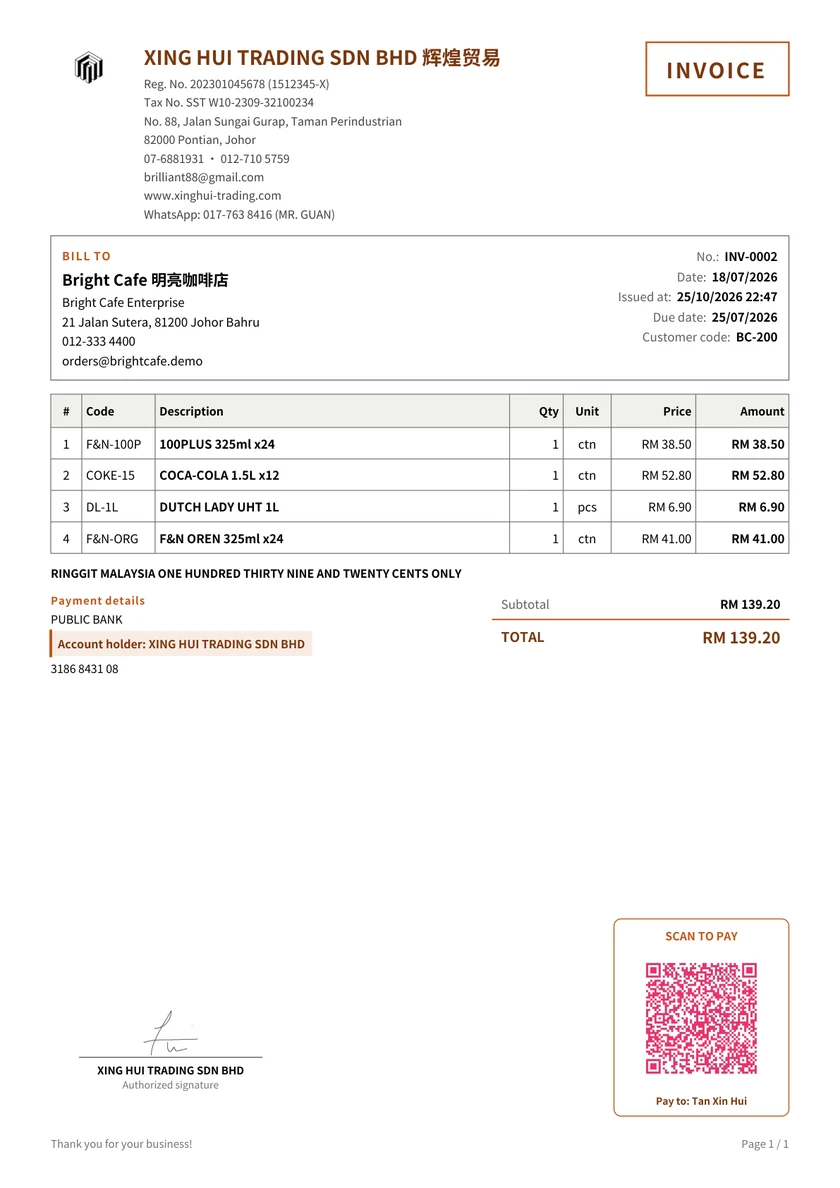
An original XING HUI TRADING document exported from the existing workspace, with its logo and signature. Use it as a layout reference and enter your own details.
The browser and Android app keep separate local data. Optional authorized Google Drive backup and restore transfers a working copy; it is not live synchronization. Check which copy is current before restoring, and read the restore confirmation because it replaces the destination's working data.
Google sign-in provides account access, including Web history, but it does not by itself transfer your businesses or invoices to another browser. Keep exported documents and a suitable backup rather than relying on an old browser tab.
Do I need Pro for every invoice?
The free plan has no time limit. It includes three footer-free exports each month; later exports carry an InvoisLaju footer. Premium templates, signatures and payment QR have separate trial allowances. Review the plan details before choosing an optional paid feature. Check the current plan comparison for feature allowances and backup access. Preparing a PDF does not submit it to MyInvois.
Start with the correct business
Choose the business and currency first, then review the payment details on the preview before exporting.